

Three steps
- 01
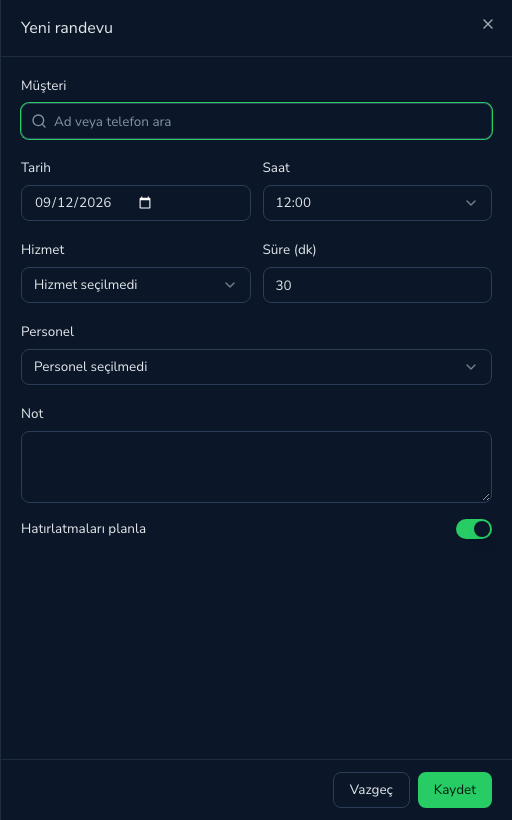
Add the appointment
Click an empty slot in the calendar, pick a client or create one. Reminders are scheduled automatically.
- 02
The reminder goes out
By default 24 hours and 2 hours before. You choose the timing and the quiet hours.
MMesajhaneAyça Beauty StudioHi Emma, this is a reminder of your Haircut appointment on tomorrow (Friday, Sep 11) at 2:00 PM. Please let us know using the buttons below.
09:41ConfirmCancel - 03
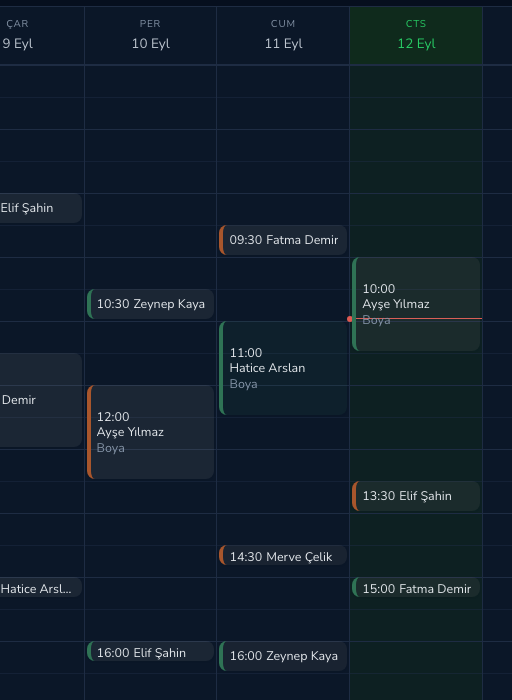
The answer lands in your panel
Confirm turns the appointment green; Cancel shows up in the panel and in your inbox.
What your client sees
Messages are sent from a shared Mesajhane number. Your business name appears in bold on the first line, so the client knows who it is before opening the chat.
Confirm and Cancel are native WhatsApp quick-reply buttons. No app, no link.
For healthcare businesses the service name is left out; the client only receives the date and time.
If a client replies STOP, no business can message that number again. Only the client can undo it by replying START.
Why it pays off
Your customer is already there
Nobody opens the SMS inbox. WhatsApp gets opened dozens of times a day. Your message lands where it will actually be seen.
You get an answer back
SMS is one way. A WhatsApp message can carry buttons; the customer taps once and the answer lands in your panel.
Start with reminders, do not stop there
The first use is appointment reminders. After that it is up to you: campaigns, order updates, payment reminders.
What is in the panel?
Everything you see after signing up. No add-on modules, no extra fees.
Calendar and appointments
Day, week and list views. Click an open slot to book; reminders are scheduled right then. Staff conflicts are checked.
Your own template
Write your text and submit it for WhatsApp review. Once approved you can send it to any customer, no appointment needed.
Customer card
Phone, consent status, no-shows and message history on one screen. Bulk import via CSV.
Quiet hours and quota
Nothing goes out at night; it waits until morning. Your remaining messages show in the top bar; top up when you run out.
Reports
Confirmation rate, no-shows, recovered appointments, message cost. Pick a date range and export CSV.
Team and roles
Add staff accounts; they see their own appointments and cannot touch settings or billing.
Consent and privacy
Consent is recorded per customer. If someone opts out, sending stops immediately and permanently.
No setup
No number to buy, no SIM card, no device to keep online. You can send the moment you sign up.